
Records Console

The Records Console is used to search and edit existing records and add new ones. When you click on the Record console icon, a list of record types is displayed from which you can select the desired one.
The following types of records are available in the Records console:
- Request
- Request template
- Knowledge Base
- Problem
- Release
- Workflow
- Task
- Workflow template
- Task template
- Project
- Project task
- Project template
- Project task template
- Invoice
- Service
- Service instance (component)
- Service Offering
- Service Level Agreement (SLA)
- First Line of Support Agreement (FLSA)
- Product
- Configuration Item (CI)
- Contract
- Organization
- Team
- Skill Pool
- Person
- Site
- Risk
Depending on the roles associated with your personal account, one or more of these types of records may be missing from the list.
Views
After selecting a record type, the first view available for that record type will open , and the first button above that view will be active. For example, if you select “Requests” after going to the records console, the “All Requests” view will open, since this is the first of the available views, and the button Open will be active (a view with all open requests is displayed), as this is the first button of this view. Please note that not all views have buttons.
If there are several views available for a record type, then you can see a small triangle next to the name of this view. Clicking on this triangle or the view name opens a list of all views for the selected record type. You can select a view from the list and switch to it.
Adding Records
To add a record of the selected type, click the Add button on the toolbar (the button with the plus sign).
Space (account) Switcher
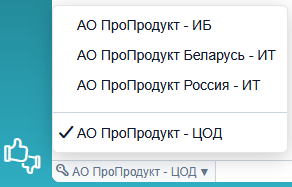
When assigning roles to a person in different spaces , they can see records from different spaces and switch between them by clicking on the space toggle located under the view. By default, the switch is set to the space that the person's personal account belongs to. If a person has access to several spaces, then next to the name of the space displayed in On the switch, you can see a small triangle. Clicking on the name will display a list of available spaces.