
Toolbars
After logging into the R-Service (RR Tech Service Management) system, the toolbar can be found at the top (top toolbar) or on the left (side toolbar). Their options differ depending on the console you are in, the selected entry, and the roles associated with your face entry. The toolbars contain the following elements.
> Side Toolbar
Console icons
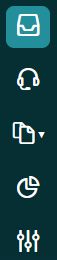
The console icons are located on the left side of the screen under the "hamburger" menu icon (an icon with three top lines located one above the other). By clicking on the "hamburger" menu icon, you can hide the side row with console icons. The icon of the console you are currently working on is highlighted in a different shade. To switch to another console, click on its icon. There are five consoles available in the R-Service system:
> Top toolbar
Search

The search bar is located to the right of the logo of the R-Service system. A text is entered into this line, which becomes a filter for the entries of the current view. If you enter keywords in the search bar and press Enter, a full search will be performed for all entries. To learn more about applying filters to views and record search, go to Filters and Search.
Add, Edit and Save buttons

The use of the Add and Edit buttons depends on the available access rights to the selected entries. You can use these buttons to create a new record or update an existing one.

When you create a new entry or edit an existing one, the Edit button changes to Save.
Buttons Reject, Accept, Start, Forward

If you go to the Inbox or Records console and select a request, problem, or task assigned to your team or specifically to you, various buttons become available to you, one of which is Reject. You can use this button to specify that another team (if you are the coordinator of the current team) or another team member should be assigned to perform this assignment.
After clicking on the button Reject The assignment status changes to “Rejected”. Rejected problems and tasks are returned to the problem manager or workflow manager. Rejected requests are returned to the coordinator of the currently assigned team. However, if the designated person is the coordinator of the team, or if the "Member" field is not filled in, the request is returned to the team to which it was previously assigned. If the request has not been previously assigned to another team, it is returned to the responsible Service Desk team.
After clicking on the button Accept the assignment status changes to “Accepted”. If you were not selected in the "Member" field, then you are selected in it at the time of accepting the assignment. After accepting the assignment, you indicate that you will start fulfilling it after completing the primary tasks.
Similarly, after clicking on the Start button, the assignment status changes to “In progress”, and you are selected in the "Member" field (provided that this field is not filled in).
Using the button Forward You can forward the assignment to another team member or another team.
The Approve and Reject buttons

You can open the reconciliation task in the Inbox or Records console and click the Approve button. This will change the task status to “Approve". When you click on the button Reject you must specify the reason for the rejection, after which the task status will change to “Rejected”.
The agile boards button

If the assignment was posted on agile-board, pressing the Agile-board button opens this agile-board.
The Provide Feedback button

Pressing a button Provide feedback Registers a request to change (update) the specified knowledge base article based on the feedback displayed in the comment field in the request.
The Viewed button
Button Viewed is displayed in the records console if you are a problem manager role. The button is active only if the selected request is related to an instance of the service for which you are the problem manager, and if the selected request has already been completed with a reason other than “Resolved” and should not be related to the problem or workflow.
Clicking on the button Viewed sets a checkbox on it, clicking it again removes it. The viewed requests are not displayed in the “Problem Identification Requests” view in the Records console.
The Reviewed button
The Reviewed button is displayed on the toolbar if the “Requests with an unsatisfied requester” view is selected in the Records console, and you have the role of Service Desk Manager roles in the selected space.
If the New button is pressed above the view, only requests are displayed in the view without the checkbox on the Reviewed button on the toolbar. Clicking on the Reviewed button will check the box on it and the selected request will be moved to the list of ‘reviewed’ requests with an unsatisfied initiator. If you click the Reviewed button again, the checkbox on the button will be unchecked and the request will return to the list of ‘new’ requests with an unsatisfied initiator.
Gantt Chart Button

The Gantt Chart button is displayed on the toolbar if a project or workflow is open in the viewing or editing mode. Clicking this button opens a Gantt chart for a project or workflow.
The Watch List button

Using the Watch List button, you can add various requests, problems, releases, workflows, workflow tasks, projects, or project tasks to the watch list. To add an item to the watch list, click on this button and select the ‘Start Monitoring' option. To remove an item from the watch list, click Watch List again and select ‘Stop Watching'. If other people in your space are watching the recording, the number of observers is indicated on the button, and the people themselves are displayed in the list. You can also add colleagues to the request watch list. In this case, they will receive notifications when they add comments to the request.
Action Button

Clicking on the Actions button opens a menu with a list of possible actions. They depend on the selected record and your access rights.
The Chats icon

Clicking on the Chats icon will allow you to select a person and start a chat with them.
Notification Icon

When you click on the icon Notifications A list of items on your watch list is displayed. If a comment has been added to one of the items on your watch list that you haven't seen yet, a blue dot will appear in front of that item. If there are one or more unread comments, a blue dot is also displayed on the notification icon.
Time Spent today indicator

If an organization keeps track of working hours by recording the timesheet settings, the employees of this organization have access to the Time spent today button on the toolbar. This button displays the total time spent by the user today on requests, problems, tasks, and time allocation. Every day at midnight (in the user's time zone), this indicator starts counting from zero.
Personal settings

When you click on the icon located on the rightmost part of the toolbar, a menu with sections becomes available. “My profile”, “Help and Support“ and ”Log out". The first one is used to update information, preferences, or password (if Single sign-on (SSO) is not activated). “Help and Support" opens the online help of the R-Service system. Click on “Log out" to log out of the R-Service system, and you will log out even if the “Remember me on this computer” checkbox is selected on the login page.